Read the Operational Overview
Purpose
Use Overview to review request outcomes, recorded spend and operational attention for the current Organization and Team context. Start Team setup and key issuance from Teams and Virtual keys.
Prerequisites
Sign in with current Organization membership. Overview is available to every Organization member, but each panel requires its own permission:
| Panel | Required permission |
|---|---|
| Requests, success rate, policy denials, outcomes and recent request metadata | observability.read |
| Recorded spend and unknown-cost attempts | usage.read |
| Current budget constraints | budgets.read |
| Suspended Team status | team.read |
Organization and Team role assignments can grant these permissions independently. The eight role presets and bounded custom roles remain unchanged. Human roles do not authorize inference; virtual-key policy does. Changing current human permissions requires no restart or new key.
Procedure
- Choose the Organization in the persistent workspace header. In Team context, select one Team or All authorized Teams. An unselected Overview reports across authorized Teams. Check the coverage beside each panel: request, spend, budget and Team-status coverage can differ.
- Select a Reporting period of Last 24 hours, Last 7 days or Last 30 days, then choose Apply period. Check the visible UTC start and end. Refresh moves a preset window to the current time; it retains the bounds of a custom-duration window.
- Read the metric definitions below before comparing totals. Follow a metric's Requests or Usage link to investigate its exact authorized Team scope and pinned time window. Outcome links also apply the matching outcome filter.
- Review Request outcomes and recent request activity. Overview shows the latest five matching requests; the metric totals cover every matching decision, independently of this list limit. Recent activity contains authorized metadata and outcomes, without captured content.
- Review operational attention for failed or denied requests, unknown-cost attempts, current budget constraints and suspended Teams where you have permission. Follow the relevant scoped destination to investigate.
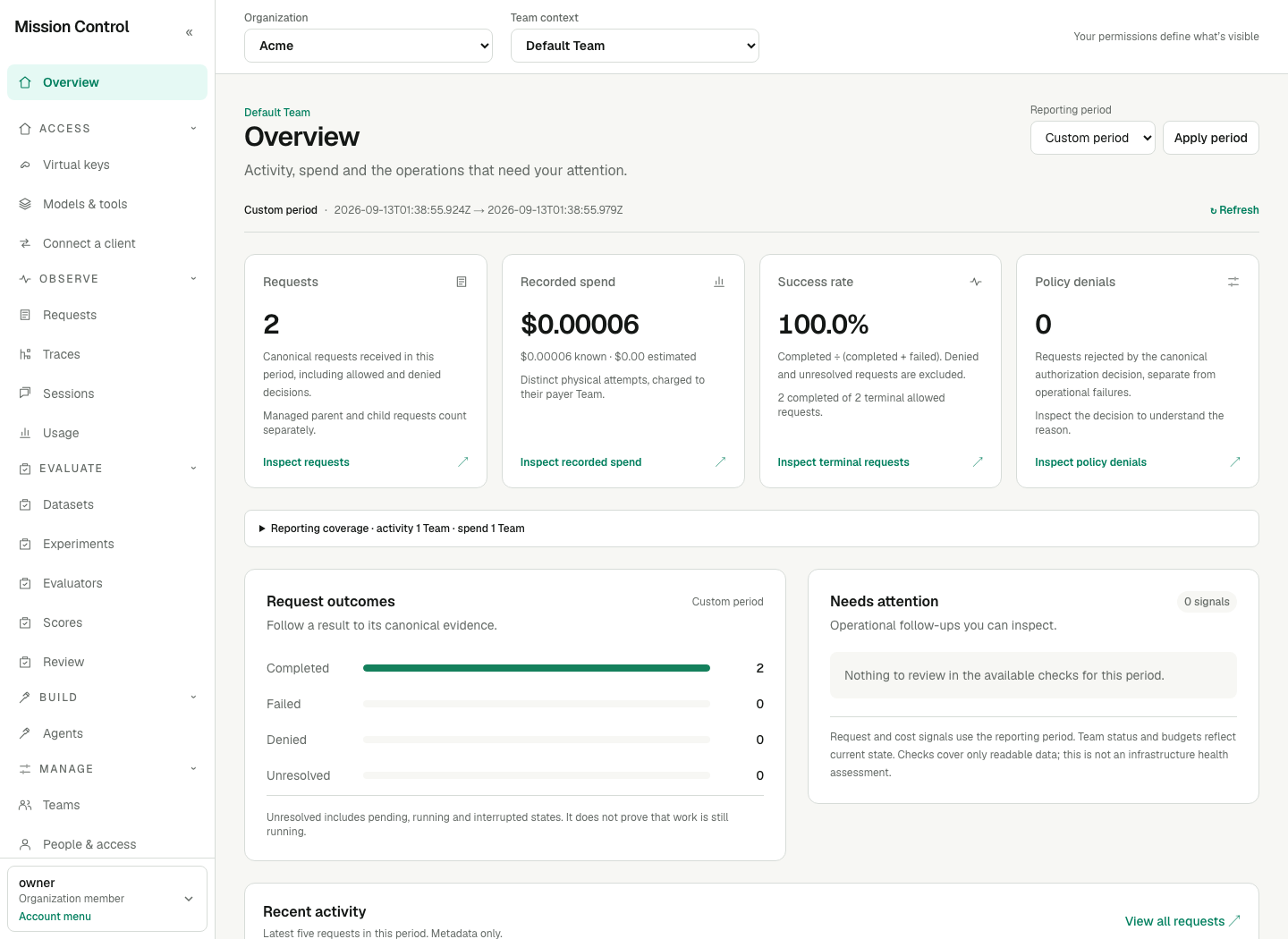
The workspace header keeps context visible above the report. Compare the coverage and time bounds before following a metric to Requests or Usage.
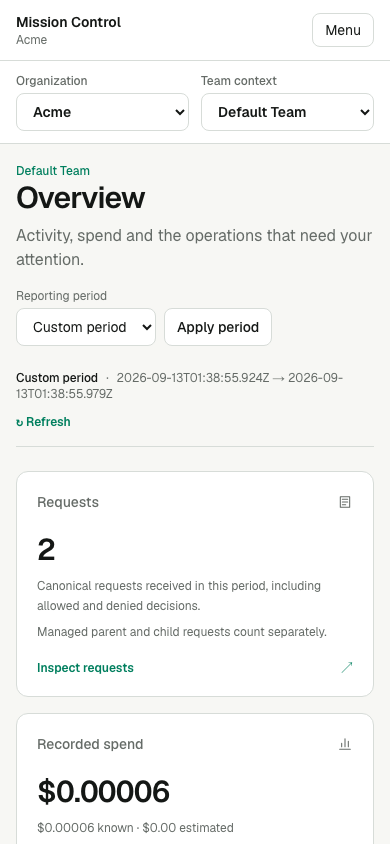
On a narrow screen, the navigation opens as a modal drawer while the workspace context remains available in the page header. See switching context and using navigation.
Metric definitions
| Metric or outcome | Meaning |
|---|---|
| Requests | Canonical inference decisions received within the window, including managed wrapper and child decisions. These are not distinct physical provider attempts, user turns or Traces. |
| Completed | Allowed decisions whose terminal state is succeeded. |
| Failed | Allowed decisions whose terminal state is failed. A budget rejection recorded after initial authorization belongs here. |
| Denied / Policy denials | Decisions with admission denied (allowed = false), regardless of their stored state. |
| Unresolved | All other allowed decision states. These remain separate from Completed and Failed. |
| Success rate | Completed / (Completed + Failed). Denied and Unresolved are excluded. With no terminal requests, the value is an em dash (—). Inspect terminal requests opens exactly the Completed and Failed decisions used by the metric. |
| Recorded spend | Known + estimated cost from non-cancelled physical ledger attempts created within the window, attributed to the payer Team. Estimates remain labelled and unknown-cost attempts make the total incomplete. |
Known, estimated and unknown costs remain distinct. No matching attempts is an empty state, not measured zero cost. Managed wrappers, uploaded spans and overlapping budget meters do not multiply spend. Request receipt time and physical attempt creation time are different boundaries, so request and attempt totals need not match.
Each panel reports its own authorized coverage. All authorized Teams is not a promise of Organization-wide access: a viewer may read requests for one set of Teams and spend for another. Selecting a Team does not grant authority. A selected Team without a panel's read permission shows a restricted state instead of an Organization aggregate. An invalid, inaccessible or cross-Organization Team selection shows an unavailable context without disclosing its name.
Operational attention is limited to the checks shown. Request and unknown-cost signals use the report window. Budget signals use current constraint windows, independent of the report range. Each finite cap appears when it is blocked or at least 80% used within its own current window. Organization constraints remain included when a Team is selected if you hold budgets.read at Organization scope, because those ancestor constraints still apply to that Team. Suspended status describes the current Team. No signals found does not establish infrastructure health or uptime; Overview provides no latency or uptime metric.
Time windows and drill-downs
Windows are half-open [from, to): include the start instant and exclude the end instant. The URL uses from and to as UTC epoch milliseconds. Both bounds are required for an absolute window, which must be ordered and no longer than 30 days. Invalid, reversed, duplicate, partial or oversized windows show a filter error; they never fall back to broader data.
The default 24h window resolves once before rendering. Presets use range=24h, range=7d or range=30d. Default and preset URLs redirect to pinned from and to bounds before the page renders, so sidebar reporting links and metric drill-downs retain the same evidence window. The pinned URL omits range. Requests and Usage consume those same bounds; Requests also applies the selected outcome server-side.
Refresh resolves a new window for the current preset. An absolute window whose duration differs from the presets appears as Custom period; refreshing a custom window retains its bounds. To move from that window to recent data, select a preset and choose Apply period.
The Success rate link uses outcome=terminal, which matches only allowed decisions in succeeded or failed state. The individual outcome filters are completed, failed, denied and unresolved. The Requests list shows its latest 100 matches and full matching count, while Overview aggregates cover all matching decisions.
Expected result
You can distinguish measured activity, incomplete costs, restricted coverage, empty data and unavailable context. Each metric opens evidence for the same authorized scope and absolute window. Overview contains no key cards, counts, tables, secrets or creation checklist; Teams and Virtual keys own that workflow.
Verification
Confirm that a metric and its drill-down show the same Team context and UTC bounds. Compare the four outcome counts with Requests; Completed + Failed + Denied + Unresolved equals the Requests total. A restricted spend panel must not become zero spending, and an unknown-cost attempt must not become free work. Switching Teams clears resource/filter identifiers and pagination and returns resource details to their lists. Team detail instead opens the newly selected readable Team, or the Teams list for All authorized Teams. Create key keeps its creation route with the new Team and resets its form and one-time secret state. An unavailable workspace returns to Overview. Switching Organizations opens its Overview with no previous Team or resource context.
Failure recovery
For a filter error, select a valid preset and apply it, or remove the invalid reporting query parameters before reopening Overview. For unavailable context, select an accessible Team or All authorized Teams; do not edit a Team identifier to seek broader access. For a restricted panel, request its exact permission. If evidence is unavailable, refresh and inspect the relevant service through the observability guide, without replaying inference to recreate historical data. An empty list means no matching records in this scope and window.