Create and curate a dataset
Purpose
Collect cases you can run again after an Agent changes. Start with a few synthetic prompts or deliberately copy retained production evidence into a versioned dataset.
Prerequisites
evaluation.read opens dataset metadata; evaluation.manage creates datasets and changes items; evaluation.content.read reveals item bodies. Copying observations also requires observability.read and observability.content.read in the same Team. Select that Team in the workspace header. A dataset belongs to exactly one Team.
Procedure
Create cases and manage versions
- Open Evaluate → Datasets and choose New dataset. Set Name and an optional Description, then choose Create dataset. A dataset starts empty at version 0 and belongs to exactly one Team.
- Open a dataset for its Items tab. Choose Add item to write one yourself: Input and Expected output take a JSON object or array and Metadata a JSON object, then choose Save item. Each row carries the item id, its bodies, its metadata keys, where it came from and the version that added it.
- Choose Edit on a row to replace its bodies, Archive to take it out of the current version while it stays readable in the versions that held it, or Delete permanently to erase its bodies. Every change opens the next version.
- Use Version with Apply version to read the dataset as it stood earlier; Back to the current version returns. The Versions tab lists every version with the change that opened it, the item count, the note and, under By, the name of whoever opened it. A historical version and an archived dataset are read-only.
- Choose Export JSON for a file you can read back in, or Export CSV to inspect the items elsewhere. Import JSON reads a dataset export into the open dataset: an item id already there is updated, an unknown id creates a new item, and refused items are named with their reason.
Example: one support case
For the first Agent tutorial, use Input:
{"text":"Draft a reply about order DEMO-104. It shipped Monday; no delivery estimate is available."}
Use Expected output to describe the behavior to measure:
{"criteria":"Mentions Monday shipment, does not invent a delivery date, and uses at most three sentences."}
Keep Metadata as an empty object ({}) unless you need labels for analysis. Expected output is reference data for your chosen grader or reviewer; it is not an instruction sent to the Agent. Save this item, note the dataset version, then run an experiment with the saved tutorial snapshot and No tools.
Curate existing evidence
- Open a Trace under Observe and use its Add to dataset panel. Span with Apply span chooses the part of the Trace to copy; Entry request is the default. Choose a Dataset, or New dataset… with a Name, edit the prefilled Input and Expected output, then choose Add to dataset. Open dataset leads to the stored item.
- On a Session, choose Add conversation up to this turn beside a turn. The proposed item carries the earlier turns of that conversation and the chosen turn's own input; complete the same panel to store it.
- On Observe → Requests, select the requests you want, choose a Dataset above the table and choose Add selected to dataset. The page reports Added n requests to the dataset. m skipped. A batch copies at most 200 requests and opens a single version.
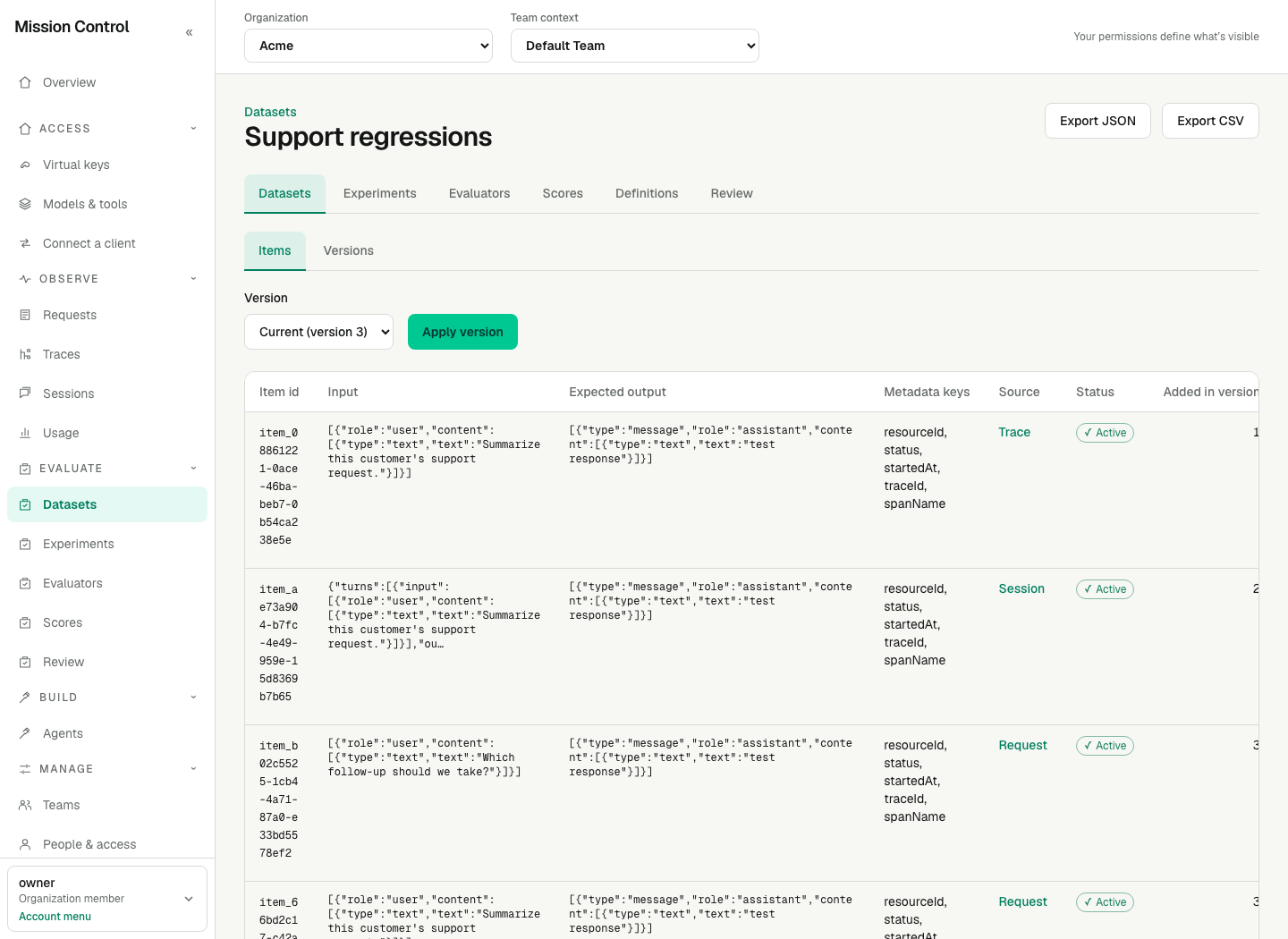
Item bodies are the content of the copied evidence; the id, metadata keys, source and status are metadata.
Expected result
Dataset item bodies follow the same separation: evaluation.read shows item ids, metadata keys, source and status, and Hidden stands where a body would be without evaluation.content.read.
Every item records where it came from — Trace, Span, Session, Request, Chat turn, Import or Manual — and that source links back to the evidence when its identity was captured. An imported item is recorded as Import: provenance carried in a file is not evidence, so it is not transferred.
Every change opens the next version and keeps the earlier ones exactly as they were, so an item edited today does not change what version 3 held. Version 0 is an empty dataset.
Copying is deliberate, and copied content outlives its source. The bodies are yours to edit before they are stored, and deleting a Trace or letting its observations expire leaves the dataset item that was copied from it untouched. Delete permanently is the erasure path: it removes that item's bodies from storage while the version history and the content hash remain, so the record of the change survives without the content.
An export carries the archived items of the version as well as the active ones, each with its status, so a re-import restores the dataset as it stood. An export is refused above 5,000 items, the same limit one import carries. Without evaluation.content.read an export carries item ids, status, metadata keys, source and content hash and no bodies at all.
Verification
Copy one Trace into a dataset, then open that dataset as a viewer holding only evaluation.read and confirm every item id shows while each body reads Hidden. Archive an item and confirm it leaves the current version and is still listed at the version that held it. Export the dataset as JSON and read it back into a second dataset to confirm the file is complete. Dataset edits require no restart or new session.
Failure recovery
Dataset changed. Refresh and try again. means the dataset moved to a later version while your page was open: reload and repeat the change. Dataset is archived means the dataset no longer accepts changes; its items stay readable.
The Add to dataset panel states why it cannot copy an observation:
- Captured content is unavailable (metadata capture) — that Trace was captured as metadata only, so no body exists to copy. Capture mode applies to work as it happens and cannot be applied afterwards.
- You need captured-content access to copy this evidence — copying needs
observability.content.readon that Team as well asevaluation.manage. - No entry request was captured for this Trace — nothing in the Trace is a gateway request. Choose another Span or another Trace.
- Tracing is unavailable right now — the telemetry store could not be read. The Trace and its requests are unaffected; try again once it answers.
- This Trace has no retained observations — its spans were deleted or have expired.
A missing Add to dataset panel means you lack evaluation.manage on that Team. A missing selection column on Requests means no single Team is selected, you may not curate in the selected Team, or that Team has no dataset yet: create one from a Trace, a Session or the Datasets page first. Skipped requests in a batch had no captured content, no Trace, or could not be read; copy those individually from their Trace to see the exact reason.