Issue and Manage Virtual Keys
Purpose
Create a user or service-account virtual key, review its exact policy and limits, and retain its one-time secret.
Prerequisites
Select one active Team. For your own key you need keys.user.create and an active Team membership. Managing it uses keys.user.manage; other-user keys use keys.manage; service keys use keys.service.manage. A service account needs no human creator membership after creation. Team/catalog allowance must permit the intended operations. Team request metadata needs observability.read; managing your own user key can permit only that key's Requests through keys.user.manage. Usage requires usage.read separately.
Procedure
- Open Access → Virtual keys → Create key in the selected Team, or use Create key from that Team's setup actions. Team selection is visible in the workspace header; an unselected list asks for one Team before creation.
- Choose For me or For a service. The former uses your actual current Organization and Team memberships. For a service, select an ordinary service account or create one inline.
- Set the name, expiry and optional environment label. Select operations and resource policy. None denies the family, Selected resources narrows it, and Inherit Team resources follows the Team allowance. Selected resources opens a searchable checklist that offers only what the Team allowance permits, so a key cannot be given a resource its Team lacks; search matches a name or a pasted resource ID. An empty checklist means the Team allows nothing in that family yet. Followed tool sets remain subject to the current catalog and Team allowance.
- Optionally add a key operating cap. Choose its Metric; the Window and Unit offered follow it, so only a combination the service accepts can be submitted. A spend cap is entered in Limit (USD) as dollars, with at most six decimal places; every other unit takes a whole number. A key manager may narrow this key without permission to inspect ancestor budgets.
0is a hard stop; an absent cap does not remove parent ceilings. - Review owner, Team, operations/resources and limits. The review lists each chosen model, tool, deployment and followed tool set by the name the picker offered, with its resource identifier beneath; a choice the picker no longer offers is listed as its identifier. An initial cap is stated as a sentence, such as "Operating spend cap: $25.00 per month (UTC)"; without one the review reads "No initial cap". Applicable constraints states each inherited cap in the same words and units, such as "Allocation spend ceiling · monthly (UTC) · $25.00 · revision 3 · used $1.23 · remaining $23.77"; a cap with no limit reads "no additional constraint" and a counter with nothing to subtract from reads "unbounded". The same block appears on the key's own page. Review issues no credential. Confirm creation to atomically create the key and initial caps.
- Save the one-time secret to your backend secret store. Acknowledge the reveal; ordinary reads cannot return it. Under Send your first request, use the offered curl or SDK example from your local application's working directory. Load your saved credential into
MISSION_CONTROL_API_KEY; examples use the environment variable and a finite output bound for generation. The secret is never part of a link or persisted by the follow-up page. - Follow Inspect requests for this key and, with
usage.read, View usage for this key. Both retain the exact Team and logical key filters. Connect a client preserves that context for the next setup step. If the policy has no eligible generation model, the example offers model discovery and explains that you must use an operation/resource allowed by the key.GET /v1/modelsdoes not generate inference usage; make an allowed model or tool call to create that evidence. - Open key detail to inspect current policy. It names the key's Team as the link and its owner as the person or service account it is, keeping the user and membership identifiers beneath the name; the list shows Owned by name or Service name under each key. Its Requests and Usage section offers Inspect requests for this logical key and View usage for this logical key independently according to your permissions, with the exact Team/key filters. With
usage.read, its Usage section reads the key's own totals in money and counts — Spend with its known and estimated parts, Estimation drift when the settled cost differed from the estimate, Attempts with the estimated and unknown counts, Tokens, and a Window of All time, because this summary has no bounds. Rotate to obtain a new secret and bounded old-secret overlap; update clients before overlap ends. Block is reversible; Revoke is terminal.
The review summarizes operations and resources; expand View as JSON when you need the exact policy document, and copy it with the button inside. Changing Team context during Create key keeps the creation route for the new Team and resets the form and one-time secret state. Review the new Team's policy before creating a key; an unavailable workspace returns to Overview.
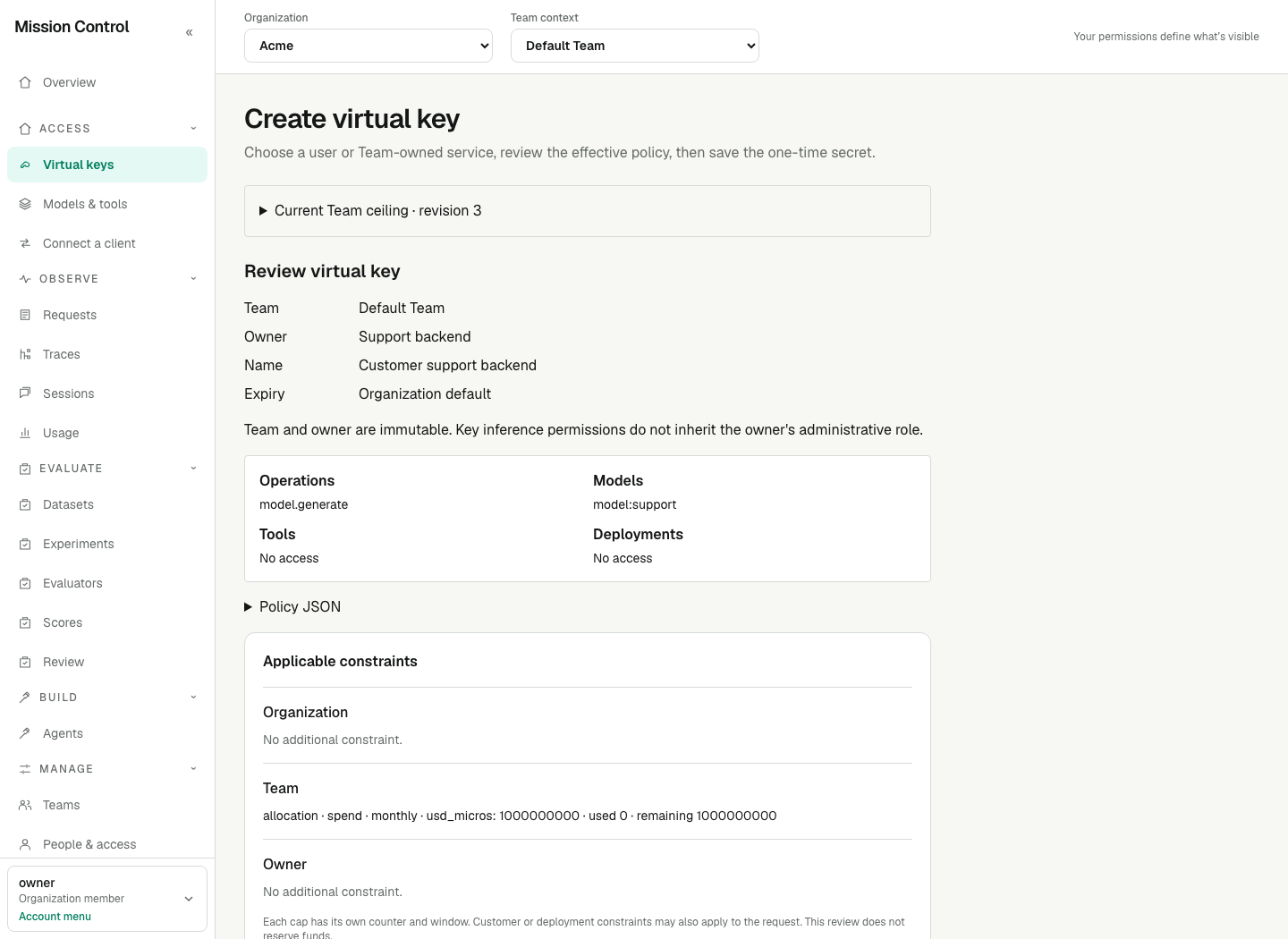
Review the exact owner and allowed operations before the one-time credential is created.
Expected result
Keys, their owners and their Teams are named wherever they are listed, read under the key permission that showed you the key; where no name is found the identifier is shown as it is and nothing claims why. The logical key, its credential versions and accounting identity are distinct. Secret rotation does not split counters or clear history. Effective access remains catalog ∩ Team allowance ∩ key policy.
Verification
Call GET /v1/models with the key, then make one allowed bounded request and one disallowed request. Use Inspect requests for this key to confirm the allowed request and exact Team/key filters in Observe → Requests. Open View usage for this key if permitted and check the settled attempt without treating unknown cost as zero. Block the key and verify the next request fails; unblock only if work should resume. Policy edits use policyRevision, lifecycle edits statusRevision, and namespace binding edits namespaceRevision.
Failure recovery
For 409, refresh the relevant revision and review the new state; do not blindly overwrite. For denial, inspect current key/credential, Team, owner membership, policy and budget. Revoked or expired keys require a newly issued key. A replacement Team membership does not reactivate old user keys. Reload clients after secret changes; control-plane policy changes need no restart.
Without an allowed resource, return to the Team's Allowed resources with team.allowance.manage or ask a Team administrator. Missing request or Usage links reflect their separate permissions, not an empty history. If the one-time secret was not saved, rotate or issue a replacement rather than trying to recover it from a URL or browser storage.
If a selected resource is marked Unavailable, this form no longer offers it: the resource left the Organization catalog, or it left the Team allowance, or — for a followed tool set — no tool in that set is within the Team allowance any more. Untick it and save again. Saving while one is still ticked returns a counted message such as "2 selected tools are no longer available. They are marked Unavailable below; remove them and save again."