Administer Teams
Purpose
Create a Team, establish its allowance, and manage real membership and ordinary service accounts. This stable guide URL replaces the former Project workflow; old Project IDs are never Team aliases.
Prerequisites
teams.create creates a Team. Within a Team, use team.members.manage for membership, team.allowance.manage for resources, service_accounts.manage for services and team.manage for status. Financial allocation requires budgets.allocate. Creating a user key needs keys.user.create and current Team membership; service keys need keys.service.manage. Team request and usage links require observability.read and usage.read independently.
Procedure
- Open Manage → Teams. In the Create Team panel, enter Team name and select Create Team below the field. A new Team starts with no resource allowance. Team rows show their current status and allowance revision; select a row to open its settings.
- Select that Team explicitly. Under Members & sources, search Person by part of a name or an email address (at least two characters; a pasted user ID also finds its person), choose the person, choose a Team role and select Add membership source: this adds the person with a scoped role and a direct source. Team role lists the Team presets and the custom Team roles whose permissions you hold; you can add yourself only with a role within your own permissions (see Grants stay within your own authority). The search offers active Organization members only, each with their email address. It needs
team.members.manageon this Team and no people access: nobody is listed before you search, and one search reaches at most 50 people, so type more to narrow it. After each answer the form is empty again, ready for the next person. Every member is listed by name and every directory source reads Directory group name, with the source identifier beneath it; naming them needs no Organization people access. Review source history before removing access; a directory source is managed through Identity. - Under Allowed resources, set each of models, tools and deployments to None or Selected resources. Selected resources opens a searchable checklist of the Organization catalog: models by name, tools grouped by connector, and the Team's active production deployments as "Agent · deployment". Search matches a name or a pasted resource ID. For tools, Follow tool sets also follows a set's future membership. Requires
team.allowance.manage. Key policies may narrow or follow this allowance; they cannot exceed it. A saved resource that has since left the catalog stays listed as Unavailable until you untick it; saving with one still ticked returns a count of the affected items. Withoutteam.allowance.managethe same section reads the standing allowance instead of offering it: Models, Tools and Deployments, each either No access or the selected resource identifiers, with followed tool sets listed under Tools. Allowance identifiers are authored resource slugs and are shown as they are. - Configure Team allocation and operating caps through Budgets. Suspend the Team to contain new Team activity while retaining evidence.
- Use the Team's setup actions to continue: Create key, Virtual keys, Connect a client, View Team requests and View Team usage appear according to current permissions. For backend code, create an ordinary service account when ownership must survive an employee's departure, then issue its key. Key creation remains a separate policy review and one-time secret disclosure.
- After creating the key, use Send your first request and its example with the saved credential in
MISSION_CONTROL_API_KEY. Follow Inspect requests for this key and, when permitted, View usage for this key. These links retain the exact Team and logical key; Team-level reporting links retain the Team without a key filter.
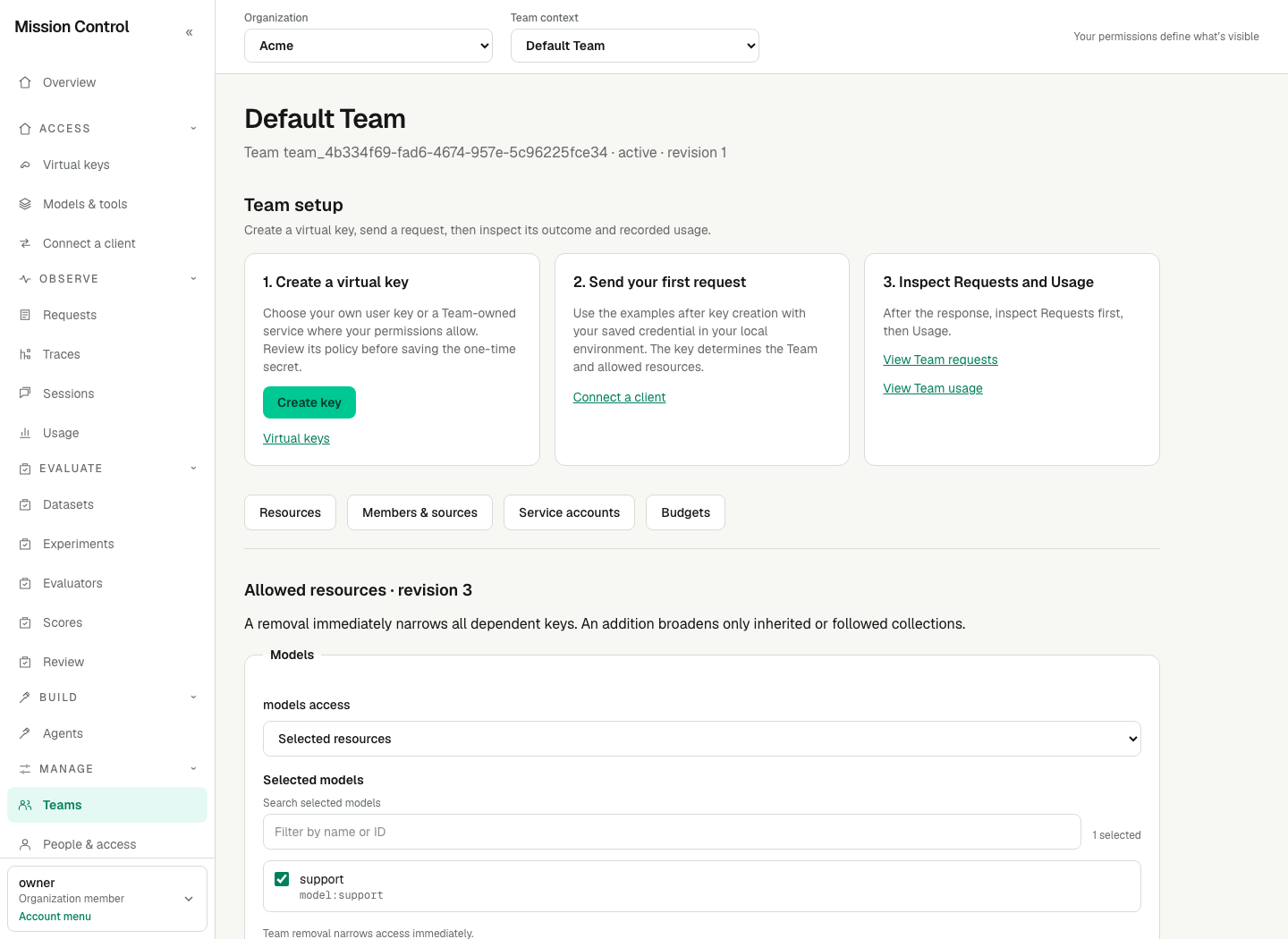
The Team allowance is a ceiling for its keys; selecting a resource here does not grant every key access.
Expected result
Membership is source-backed and instance-specific. Removing the final source invalidates that instance and its user keys. Services remain independent of their creator. All Teams is a reporting/selection view and has no ambiguous mutation target.
A new Team with no allowed resources directs setup to Allowed resources before a useful inference key can be configured. Without key-creation permission, the Team shows the access requirement rather than offering an unauthorized creation action. Teams and Virtual keys own this setup journey; Overview reports operational activity.
Verification
Create a bounded user key and verify an allowed resource succeeds while a catalog resource outside the Team allowance fails. Follow the key's request link and confirm the Team and logical key filters; compare its permitted Usage after the physical attempt settles. Remove a membership's final source and confirm its existing key fails. Rejoining does not revive the old key.
Failure recovery
On revision conflict refresh the Team and review current data. If Add membership source answers that the membership could not be changed, the person may have left the Organization or been suspended since you searched, or the role is no longer assignable: search again and review the role. Adding yourself with a preset that carries a permission you lack, such as team.developer from team.admin, is refused; ask an Organization administrator. The answer never repeats who was submitted. If access remains after removing one source, inspect other direct/directory sources. Do not rename old Project IDs into Team IDs. Current control-plane changes take effect without restart or a new secret unless issuing a replacement key.
If setup has no resources, ask a holder of team.allowance.manage to configure the allowance. If key creation or a reporting action is unavailable, request that specific permission. Selection in Team context does not grant it, and changing Teams clears earlier detail and filter identifiers.