Define and record scores
Purpose
Define a quality measure and record a human score on existing evidence. For example, use a yes/no definition named Answer is grounded to record whether a reply sticks to the supplied facts.
Prerequisites
evaluation.read opens score metadata. evaluation.manage creates definitions and can delete any score. evaluation.review records or retracts your own scores. Comments require evaluation.content.read. Scoring a Trace, span or Session also requires Team observability.read; reading its captured bodies additionally requires observability.content.read. Select one Team in the workspace header.
Procedure
- Open Evaluate → Definitions and use the New definition form. Set Name, Type — number (with Minimum and Maximum), categories (Categories, one row of Label and Value per category, with Add category for another row and Remove to take one off) or yes/no — and an optional Description, then choose Create definition. Choose Edit on an active definition to change its Description, or to add categories to a categorical definition: its standing categories are shown as rows, and leaving no filled row leaves them as they are.
- Open a Trace or Session under Observe and find its Scores panel. Pick a Definition, enter a Value and an optional Comment, then choose Save score. On a Trace, use Subject to score Whole Trace or one span instead.
- Open Evaluate → Scores for the current Team. Filter by Period, Definition, Source, Subject and Agent, then read the per-definition summary and the breakdown by Agent and version. Agent lists by name at most 200 of the Agents that appear in the Team's scores inside the period, archived ones included; an
agentIdin the address that the list does not hold, an Agent beyond those 200 included, stays selected as (unavailable) and still filters the list and Export CSV. Apply filters, Clear filters and the Evaluate tabs retain the Team selected in the workspace header. - Choose Retract on your own score to remove it. A manager holding
evaluation.manageinstead chooses Delete score in the panel, or Delete on the Scores page; either works on any score. - Choose Export CSV to download the currently filtered list, capped at 10,000 rows.
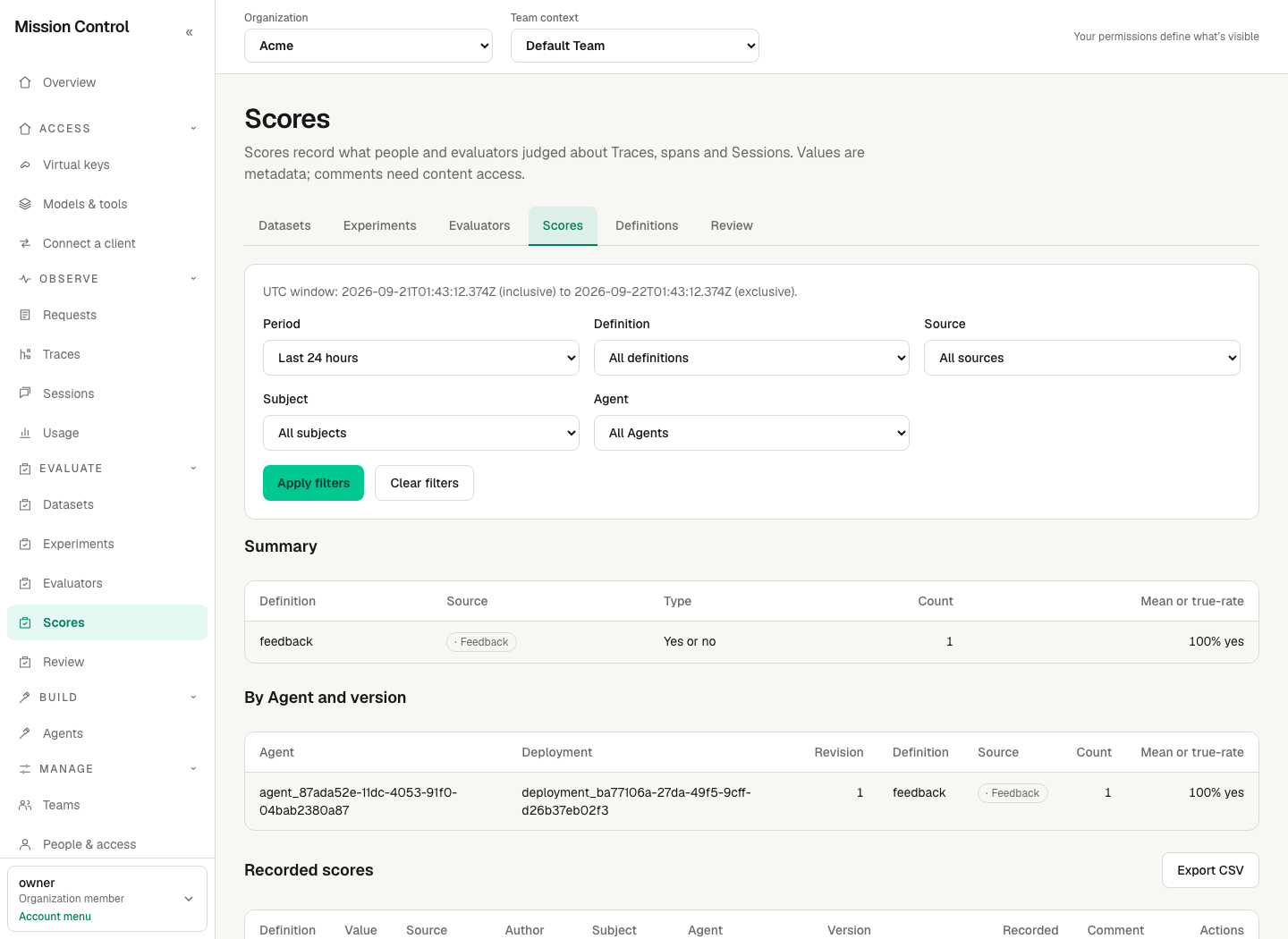
Team context in the workspace header selects the Team; the local filters narrow its Scores. Each definition's summary is independent of the breakdown rows below it.
Expected result
Score values are metadata, visible with evaluation.read; comments require evaluation.content.read and otherwise show Comment hidden on the Scores panel and Hidden in the Scores table cell. Each score keeps the Agent, deployment and version of the entry request it scored. A score survives Trace deletion and span expiry; its subject then shows as unavailable rather than disappearing. Archiving a score definition keeps its existing scores: the definition drops out of the Score form's Definition choices but remains in Definitions, marked Archived. The built-in feedback definition belongs to Chat and cannot be archived. Chat feedback arrives as scores on the built-in feedback definition with source Feedback and author Chat consumer.
Verification
Score a Trace as a developer holding evaluation.review, then open Evaluate → Scores as a viewer holding only evaluation.read and confirm the value shows while the comment does not. Archive a definition and confirm it leaves the Score form's Definition choices but stays in Definitions with Archived. No restart or new session is needed.
Failure recovery
Definition changed means another editor moved first: reload and repeat your change. Value must be in range or Value must be one of the categories means the definition decides what is accepted; adjust the value to fit its Minimum/Maximum or Categories. A missing Save score control means you lack evaluation.review, and a missing Scores panel means you lack evaluation.read or the Team's observability.read needed to see the evidence you would be scoring.