Run an experiment
Purpose
Run a saved Agent snapshot or published version against a dataset, inspect generation and grading separately, then compare the evidence with a baseline.
Prerequisites
Select a Team. You need evaluation.read, evaluation.execute and the subject permission: agent.test for a snapshot or deployment.execute for a published version. Use agent.read for Agent metadata and deployment.read for deployment metadata. Reading case bodies and outputs requires evaluation.content.read. Have a saved subject and a nonempty dataset version. Execution consumes Team funding; static readiness does not reserve it.
Procedure
- Open Evaluate → Experiments and choose Start experiment, or choose Start experiment beside the Private Preview on an Agent's Build tab to arrive with that Agent and its saved snapshot already chosen. The Build tab's shortcut belongs to the builder, so it appears only for someone who may edit, test or publish that Agent;
evaluation.executeon its own starts the same experiment from Evaluate → Experiments or from the Agent's Evaluate tab. Set Subject — an Agent, then one of its saved snapshots or one of its active production deployments — Dataset, Name, Repetitions (1 to 5), Tool policy and an optional Note, then choose Check readiness. Resolve required blocked checks before choosing Start experiment, or use Run paid smoke for the selected original case. Open experiment leads to the record. Both experiment lists — Evaluate → Experiments and the Agent's Evaluate tab — name under Started by whoever started each experiment. - The experiment page updates its overall status — Queued, Running, Grading, Waiting, Finished, Finished with errors, Failed or Cancelled — with separate generation and grading counts, known spend and coverage, and completed-case and failed-attempt median durations. While the tab is visible it polls every 2 seconds. Each item row shows the dataset item, output, item status (Queued, Invoking, Completed, Failed, Blocked on approval or Cancelled), cost coverage, latency, Trace, Request and scores. Row metadata updates with the summary; inputs, outputs and scores reflect the page load and need a deliberate refresh or reopening the item. The page's own facts name the person under Started by, with their user identifier beneath the name; where no name is found the identifier is shown as it is and nothing claims why.
- Choose Open item on a row to read the input, the expected output and the output side by side and to record a score with the same Scores panel the Trace pages carry. Recorded Failures show a safe stage, code, resource ID and measured timeout, with Open failure span when the specific failed span is known. Read Run error on the experiment first when it failed before claim: cancelled rows may have no item failure because nothing was invoked. Follow Investigate evaluation progress and errors for diagnosis.
- Read Compare evaluation evidence for explicit pass, grader/version and interpretation selection and summary denominators. Choose a Baseline on the experiment page and choose Compare. On the compare view pick a Definition for the verdict, tick Only regressions to keep the rows that got worse, and choose Apply comparison. Each row shows both outputs, both values and their delta, the cost and latency deltas, and a verdict: Improvement, Regression, Tie or No score. Add to dataset on a row leads to the candidate's Trace with the curation panel open.
- Choose Cancel experiment while it is queued or executing to stop the items that have not started; the item being invoked finishes. On the detail page, Archive becomes available after generation and grading drain and the worker releases its claim; it takes the experiment off the lists.
- The Agent workspace's Evaluate tab lists that Agent's experiments, marks the one whose version is deployed, and offers Start experiment for the current snapshot.
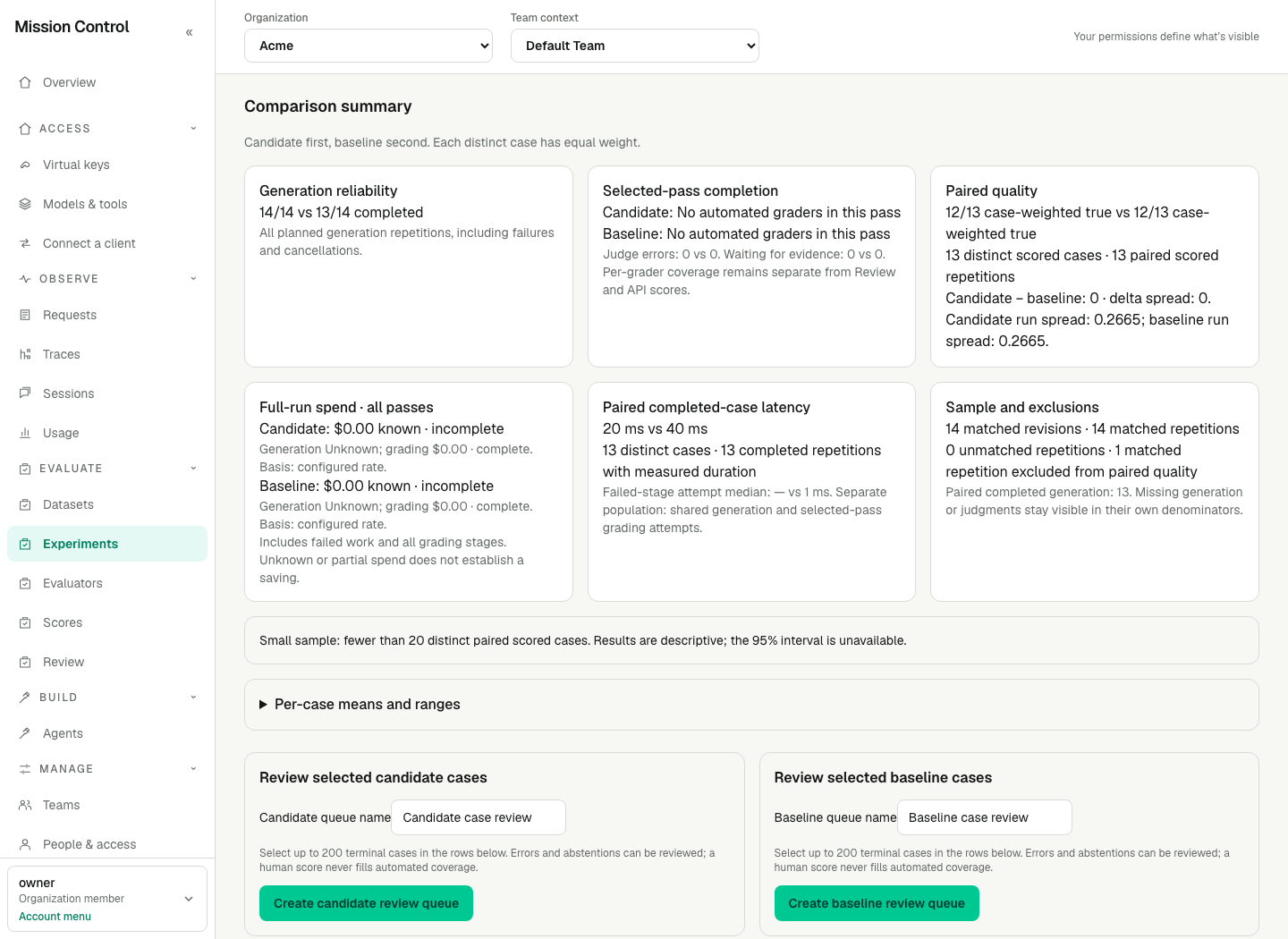
The summary shows 14/14 versus 13/14 completed generation and 12/13 paired correctness in each arm. Verdicts require a compatible selected series. Missing cost coverage or incomplete generation withholds cost deltas; unknown spend never appears free.
Expected result
An experiment is immutable: it records the dataset version, the subject it resolved (an Agent snapshot with its definition hash, or a deployment with its revision and version), the tool policy and the repetitions, and nothing about it changes afterwards. Read-only tools offers the Agent's data and decision tools, No tools offers none, and All tools also offers Action tools — an Action that asks for approval ends that item as Blocked on approval, because nobody approves inside an experiment; that item is finished and the experiment never invokes it again. A multi-turn item is replayed: the earlier user turns are sent one at a time and the Agent answers each in its own words before the final turn, so the item records how many turns were replayed rather than pretending the recorded answers were its own. Each item is one invocation funded by the Team, exactly as a Preview or a production test is, and each leaves its own Trace and Request. Compare matches immutable dataset item revisions and repetitions across completed runs in the same dataset. New, missing, revised cases and unequal repeats remain visible as exclusions. Summary/configuration appears before case details; unordered categories show distributions and label changes. See Compare evaluation evidence for exact series selection, denominators, costs and sample limits. Cancelling leaves the items that never started as Cancelled; archiving hides the experiment and deletes the threads its items used, while the Traces, the Requests and the scores stay.
Verification
Check the recorded subject, dataset version, item count, tool policy and grading versions. Open one completed item and follow its Request and Trace. Preserve the experiment ID or export as the repeatable record. No service restart or new session is needed.
Failure recovery
That item changed; reload and try again. after Cancel experiment or Archive means the experiment moved on while your page was open — it finished, or somebody else cancelled or archived it; reload to see where it stands. The dataset version has no active items means the dataset is empty at the version that stands; add an item first. A missing Start experiment control means you lack evaluation.execute. A subject missing from the picker means you cannot read it — agent.read for the Agent, deployment.read for its published versions — or that Agent has no saved snapshot and no active production deployment; the subject's own permission (agent.test for a snapshot, deployment.execute for a published version) is checked when you submit and reported on the form. That Agent is not available here. means the Agent the Start experiment link named is archived, belongs to another Team, or is not readable by you: choose another Agent from Evaluate → Experiments. An experiment that finished Failed names an error code on its header, and each failed item names its own; starter_unauthorized means the permissions the person held when they started it had lapsed by the time the gateway claimed it. On an item, subject_changed means the Agent's definition or the deployment's revision moved while the experiment was executing, so the rest of it was abandoned rather than measured against something else; output_too_large means the answer exceeded what an item record holds; invocation_trace_missing means the invocation left no Trace, and an item without one is not evidence. An experiment that stays Queued with no item ever reaching Invoking means the gateway is not executing experiments: it is down, or EXPERIMENTS_ENABLED is false in its environment (see Environment variables).